¶ FMOD Setup
FTVO integrates with FMOD Studio using a lightweight JavaScript importer.
This allows you to automatically create audio assets and folder structure directly from your FTVO project.
1. Download the FMOD Import Script
Download the FMOD JavaScript files from your Frostune Library:
https://frostune.com/library
You should have:
FTVO_Importer_FMOD.js
2. Install the Script in Your FMOD Project
- Locate your FMOD Studio project folder.
- If it does not already exist, create a folder named: Scripts
- Place FTVO_Importer_FMOD.js inside the Scripts folder.
3. Export the FTVO Manifest
In FTVO:
- Export the FMOD JavaScript manifest: ImportFrostuneManifest_DATA.js
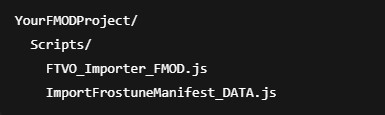
- Copy this file into the same Scripts folder in your FMOD project, alongside FTVO_Importer_FMOD.js.
Example:
4. Reload Scripts in FMOD Studio
- Open your FMOD Studio project.
- Go to the top menu: Scripts → Reload
- You should now see a new menu entry: FTVO - Import Narrative Content
5. Import Narrative Content
In FMOD Studio, open the Scripts menu and select: FTVO - Import Narrative Content
The script will automatically:
- Import audio data
- Create the required folder structure
Notes & Compatibility
- Tested with FMOD Studio 2.02.33
- Safe to re-run (idempotent imports)
- Designed for large narrative projects
- Folder and event structure stays in sync with FTVO exports
- If the script or manifest is missing, FMOD will simply not display the FTVO menu entry — no destructive operation will occur.